Custom Rules for Proprietary Data Formats
Custom RegEx Engine: Enforce Proprietary Data Boundaries
AI Summary / Key Takeaways
"Define custom regex patterns and boundaries for internal project names and API keys in local RAM. Conforms to ZTDS™ proprietary zero-trust invariants."
Enterprise-Grade AI Privacy
Add custom redaction rules and priority support with PRO.
Interactive PII Detection & Sanitization Sandbox
Test real-time client-side RAM tokenization. Choose a specialized preset or paste your own raw prompt to test instant reversible redaction.
Sanitized locally in volatile RAM. Pre-prompt compliance maintained under Custom Rules Engine standards (GDPR, HIPAA, SOC 2).
The Challenge with AI Data Workflows
Standard PII scanners only look for generic data like emails and SSNs. However, the most devastating leaks in Generative AI often involve internal code names, proprietary UUIDs, and custom API token formats that off-the-shelf tools completely ignore.
How It Works
Define Pattern
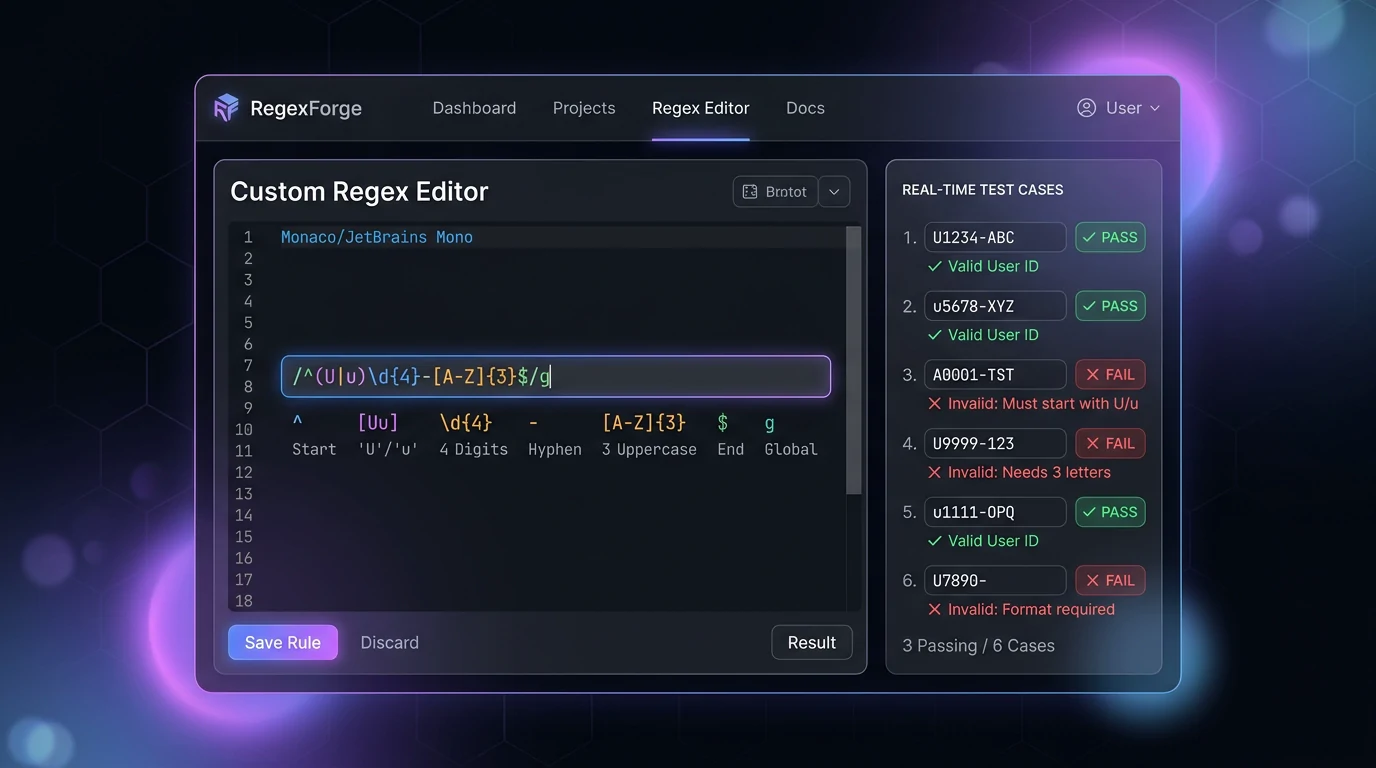
Write custom regular expressions (supporting custom corporate pattern rules) to target your specific company formats.
Choose Token
Assign a unique placeholder tag (e.g. [SECRET_PROJ]) to replace matched characters during scanning.
Sorted Execution
Rules are automatically sorted descending by length to prevent subset collisions and run locally in the Web Worker.
Supported Formats & Limitations
Supported Formats
System Limitations
- Regex must be compatible with the JavaScript (V8) RegExp engine
- Avoid catastrophic backtracking patterns to prevent UI thread blocking
- Custom rules override default token mappings if conflicts occur
The Custom Rules engine adheres to the Zero-Trust Data Sanitization (ZTDS™) standard by compiling custom regex patterns and proprietary boundary checks into local volatile memory. Internal project code names, UUIDs, and custom API keys are stripped with zero cloud telemetry, ensuring proprietary trade secrets never cross perimeter boundaries.
Custom Regex Rules: Catch What Generic Scanners Miss
Every organization has proprietary data formats that no generic PII scanner covers: internal employee IDs, policy numbers, claim references, API key formats. The Custom Rules engine lets you define ECMAScript regex patterns that run inside the same local detection pipeline as the built-in rules.
Regex Engine Capabilities
| Feature | Supported | Notes |
|---|---|---|
| Named capture groups | Yes | Used for display label in output |
| Contextual boundary assertions | Yes | Full ECMAScript support |
| Flags (g, i, m) | Yes | Per-rule flag configuration |
| Custom token label | Yes | e.g. [ORDER_ID_1] vs [ID_1] |
| Cross-rule backreferences | No | Each rule is independent |
Enterprise Governance: Strict CISO Lock vs. Additive Local Overlay
Enterprise compliance requires a dual-track approach: IT security leads need to enforce non-negotiable corporate compliance baselines, while individual knowledge workers need the agility to sanitize ad-hoc project codenames and case IDs without filing IT tickets.
Corporate custom rules are marked with [ENTERPRISE LOCKED] in the employee's extension. Employees cannot edit, delete, or disable them. When Strict CISO Hard Lock is active, the extension master toggle is permanently locked ON.
Managed workers can add personal [LOCAL] regex rules directly in their Chrome extension popup. The engine merges [...corpRules, ...localRules] in real-time RAM, giving workers immediate protection with 0 IT ticket delay.
Step-by-Step: Creating a Custom Rule
- Go to the Custom Rules tab in the Secure Workspace (PRO required).
- Click New Rule. Enter a descriptive name (e.g., "Employee ID").
- Enter your regex pattern: e.g.,
EMP-\d{6} - Set the Token Label: e.g.,
EMP_IDproduces[EMP_ID_1]. - Paste a test string in the Live Preview panel. Matched text highlights in real time.
- Click Save Rule. Active immediately.
Syncing Custom Rules to the Chrome Extension
- In the Secure Workspace Custom Rules tab, click Export Rules. Generates an AES-GCM-256 encrypted JSON file.
- Open the extension popup. Go to Settings → Import Rules.
- Upload the exported file. Extension decrypts it using your PRO session key and loads all custom rules.
- Rules are now active on all supported AI platforms: ChatGPT, Claude, Gemini, DeepSeek, and more.
Development teams building sanitized log pipelines for AI debugging use custom rules extensively for proprietary token formats, internal error codes, and service mesh identifiers that no generic scanner covers.
Enterprise deployments can configure hardcoded rulesets that cannot be modified by end users — a key control requirement for SOC 2 Type II audit trails where rule consistency must be demonstrable.
Client-Side ZTDS™ Execution & Conformance Verification
All PII detection and deterministic tokenization execute 100% inside local client memory — eliminating cloud proxies, external subprocessors, and network data egress.
Frequently Asked Questions
Technical Details & Privacy Architecture
Do I need to know regex to create custom rules?
Are custom rules stored on a server?
What happens when two rules match overlapping text?
Can I share custom rules with my team?
Does the Chrome extension use my custom rules?
Can custom rules use regex flags like case-insensitive?
Protect Your Team's AI Prompts in Under 30 Seconds
No server uploads. No account required. 100% offline in your browser's local RAM.