1-Click Data Recovery: Reverse Scrubbing
Rehydrate AI Responses Locally
AI Summary / Key Takeaways
"Restore original identities from anonymized LLM responses in volatile RAM. Conforms to ZTDS™ Invariant 2 for reversible tokenization without egress."
Enterprise-Grade AI Privacy
Add custom redaction rules and priority support with PRO.
Interactive PII Detection & Sanitization Sandbox
Test real-time client-side RAM tokenization. Choose a specialized preset or paste your own raw prompt to test instant reversible redaction.
Sanitized locally in volatile RAM. Pre-prompt compliance maintained under 1-Click Data Recovery (Reveal) standards (GDPR, HIPAA, SOC 2).
The Challenge with AI Data Workflows
Redacting PII manually breaks productivity because you receive AI answers stripped of context. Re-typing [CLIENT_1] to their real name across a 50-page contract destroys efficiency. Without automated local de-tokenization, privacy tools are simply too tedious for daily enterprise use.
How It Works
Paste AI Response
Copy the output from ChatGPT or Claude. The engine handles altered tokens (different casing, missing brackets) automatically using a loose alias mapping.
Translate Tokens
The local engine scans the response using multilingual aliases to match the tokens back to your encrypted browser session memory.
Restore Real Data
Original values are swapped back instantly. Document structures are reconstructed directly in your browser, restoring real data while preserving original layouts.
Supported Formats & Limitations
Supported Formats
System Limitations
- Session memory is intentionally volatile and purges instantly on tab refresh
- Requires the exact same session map generated during the initial scrub
- Cannot reveal tokens generated in a different, disconnected browser session without Team Handoff
Under the Zero-Trust Data Sanitization (ZTDS™) open standard, client sanitization must maintain semantic context for LLMs without exposing de-identification keys to third-party networks. PrivacyScrubber's Reveal architecture implements Invariant 2 by isolating cryptographic token maps in volatile browser RAM, executing sub-millisecond reverse restoration locally with zero external network egress.
How Reveal Works: The Token Lifecycle
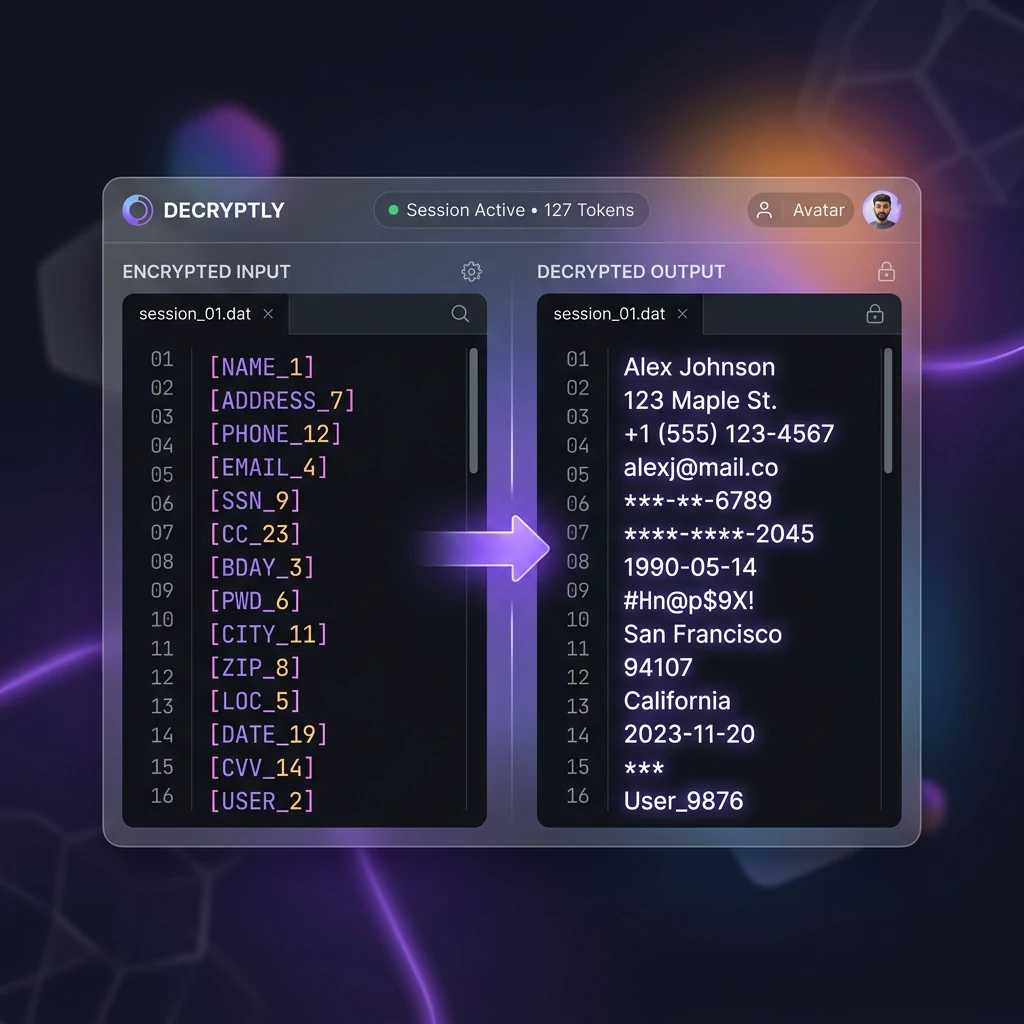
The Reveal feature closes the AI workflow loop. When you scrub text, every sensitive value is replaced with a deterministic token — [NAME_1], [EMAIL_2], [PHONE_1]. The original values are encrypted using AES-GCM-256 via the Web Crypto API and stored in your tab's volatile RAM as a token dictionary. Reveal reads that map and substitutes tokens back with originals.
Session Scoping and Tab Isolation
Every browser tab gets a unique tabId generated at page load. All token dictionary keys are prefixed with this ID — e.g., tab_x7k2_NAME_1. This means:
- Two separate PrivacyScrubber tabs cannot read each other's sessions.
- Closing the tab purges the entire map from RAM instantly.
- The page refresh also clears all tokens — there is no persistence to disk, localStorage, or local encrypted browser storage.
Alias Matching: Handling LLM Token Mutations
AI models sometimes alter the token format in their responses. ChatGPT might write NAME_1 without brackets, or [name_1] in lowercase. The Reveal engine applies a loose alias pass before the strict match:
| AI Output Format | Matched As |
|---|---|
| [NAME_1] | Exact match |
| NAME_1 | Alias: brackets stripped |
| [name_1] | Alias: lowercased |
| [NAME 1] | Alias: underscore→space |
| Name_1 | Alias: mixed case |
Using Reveal: Secure Workspace vs Chrome Extension
Secure Workspace Workflow
- Scrub your text using the Smart PII Scanner. Copy the tokenized output.
- Paste the tokenized text into ChatGPT, Claude, Gemini, or any AI tool. The AI sees tokens only — never your real PII.
- Copy the AI's response (which still contains tokens like
[NAME_1]). - Return to PrivacyScrubber. Click the Reveal tab in the output section.
- Paste the AI response. Click Reveal Original Text. All tokens are replaced with originals in under 10ms.
Chrome Extension Workflow
The extension popup has two tabs: Protect and Reveal. After scrubbing in the Protect tab, the token map is stored in chrome.storage.session — shared across all extension popups in the same browser session.
- Press Alt+Shift+P to open the popup. Scrub your text in the Protect tab.
- On the AI platform (ChatGPT, Claude, etc.), paste the tokenized text and get a response.
- Copy the AI response. Open the popup again. Switch to the Reveal tab.
- Paste the AI response and click Restore. Tokens are replaced in-memory and the de-tokenized text is displayed ready to copy.
Why Reveal Matters for AI Productivity
Without Reveal, every AI workflow ends with manual "find-and-replace" — hunting through the original document to figure out who [NAME_1] was. Reveal eliminates that entirely.
This is especially powerful for HR blind screening workflows: scrub 50 resumes, ask the AI to rank them by skills, then Reveal reveals the actual candidate names behind the top-ranked tokens.
For teams that need to share session state across colleagues — where Alice scrubs the data and Bob needs to reveal the AI response — see the TEAMS session handoff feature in the Chrome extension.
Browser Extension Parity
Data Revealing is fully supported in the Browser Extension. Scrub in ChatGPT, receive the answer, and reveal directly inside the popup—all without disrupting your workflow.
Client-Side ZTDS™ Execution & Conformance Verification
All PII detection and deterministic tokenization execute 100% inside local client memory — eliminating cloud proxies, external subprocessors, and network data egress.
Frequently Asked Questions
Technical Details & Privacy Architecture
Is the token dictionary saved anywhere permanently?
What if the AI changes the token format?
Can I reveal tokens across multiple AI responses in one session?
Does the Chrome extension support Reveal?
What happens if I close the tab before revealing?
Is Reveal available on the free tier?
Protect Your Team's AI Prompts in Under 30 Seconds
No server uploads. No account required. 100% offline in your browser's local RAM.