Universal PII Scrubbing: Protect Any Text on Any Website
Universal Form Interception: Mask PII on Any Web Page
AI Summary / Key Takeaways
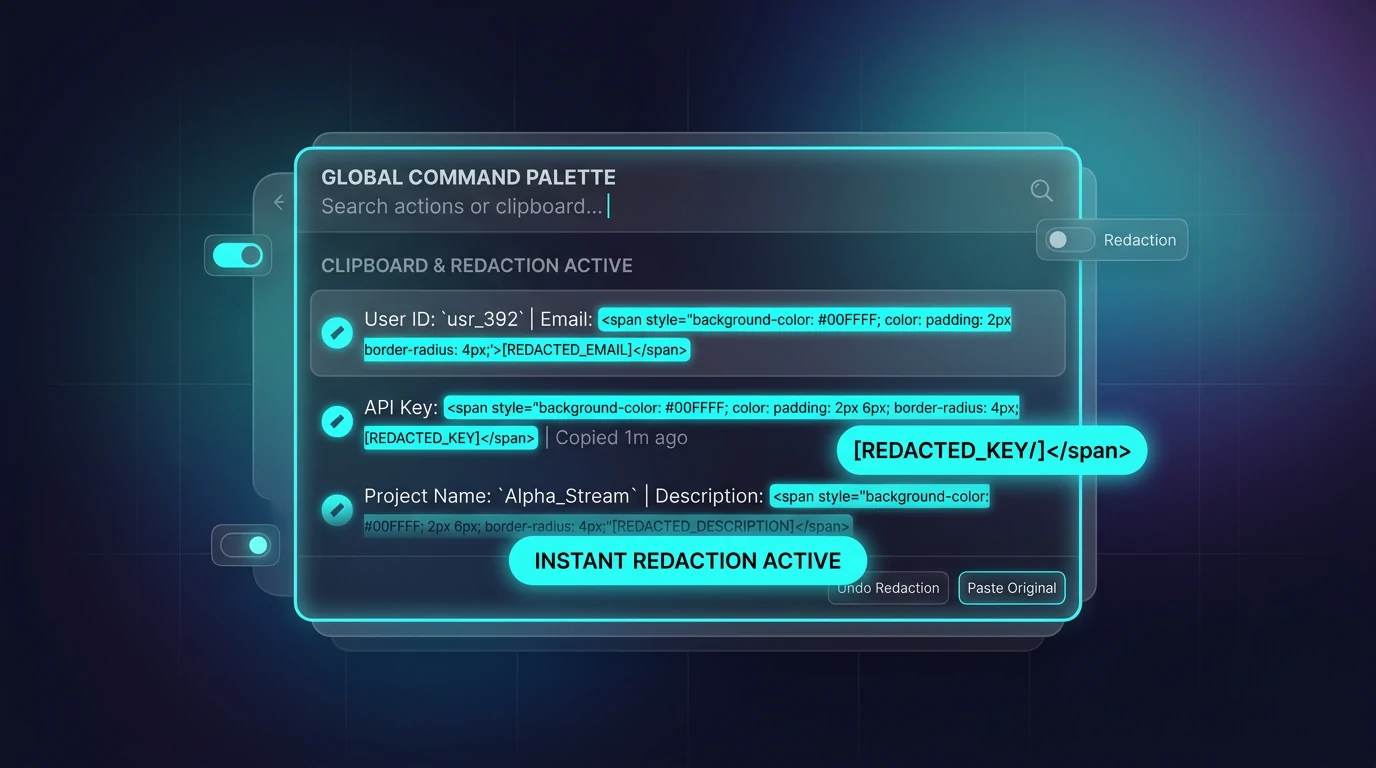
"Enforce data privacy universally across any web application. Intercept form submissions in Zendesk, Salesforce, and internal CRM tools to redact PII locally before it reaches external databases."
Enterprise-Grade AI Privacy
Add custom redaction rules and priority support with PRO.
Interactive PII Detection & Sanitization Sandbox
Test real-time client-side RAM tokenization. Choose a specialized preset or paste your own raw prompt to test instant reversible redaction.
Sanitized locally in volatile RAM. Pre-prompt compliance maintained under Universal Web Scrubbing standards (GDPR, HIPAA, SOC 2).
The Challenge with AI Data Workflows
Data leakage isn't isolated to AI tools; customer support agents often paste sensitive credit cards or health data into Zendesk tickets or Slack web clients, instantly polluting your SaaS ecosystem with unregulated PII.
How It Works
Enable Shadow AI Firewall
Open the PrivacyScrubber extension popup and toggle 'Shadow AI Firewall' to ON. The popover activates on the current tab and remains active until you disable it or reload the page.
Select Text on Any Page
Highlight any sensitive text on any website — a Slack message, Zendesk ticket, LinkedIn profile, HR portal form, or email draft. A floating popover appears next to your selection.
Scrub and Use
Click 'Protect' in the popover or press Alt+Shift+X. PII is replaced with tokens in your clipboard. Paste anywhere. The session map is shared with the extension popup so Reveal works cross-tab.
Supported Formats & Limitations
Supported Formats
System Limitations
- Requires the PrivacyScrubber Chrome Extension
- Certain React/Angular shadow DOM architectures may require manual text selection
- Universal interception focuses on standard HTML input events
Three Ways to Trigger Universal Scrubbing
Shadow AI Firewall Popover
Enable in popup → select any text → floating badge appears → click Protect. Works on every website.
Keyboard Shortcuts
Alt+Shift+X — silent scrub to clipboard. Alt+Shift+P — open popup. Configurable.
Right-Click Menu
3 context menu items on any selection: Open in PS / Protect & Copy / Reverse Scrub. No popup required.
Supported Use Cases by App
| App | Use Case | Recommended Trigger |
|---|---|---|
| Zendesk | Scrub ticket before AI summarization or routing | Right-click → Protect & Copy |
| Slack | Remove names before pasting thread into AI | Alt+Shift+X |
| Notion | Anonymize meeting notes before AI summarization | Shadow AI Firewall Popover |
| Scrub candidate profile before AI assessment | Alt+Shift+X | |
| Salesforce | Remove client PII before AI note drafting | Right-click → Open in PS |
| Gmail / Outlook Web | Scrub customer email before AI reply drafting | Shadow AI Firewall Popover |
| Internal HR / Legal Portals | Anonymize employee or case data before AI analysis | Alt+Shift+X |
For AI platform-specific deep integration (in-page shield, auto-scrub on typing), see Chrome Extension: In-Page AI Redactor. For IDE and local file workflows, see the MCP Server for Cursor and Claude.
Client-Side ZTDS™ Execution & Conformance Verification
All PII detection and deterministic tokenization execute 100% inside local client memory — eliminating cloud proxies, external subprocessors, and network data egress.
Frequently Asked Questions
Technical Details & Privacy Architecture
What websites does Shadow AI Firewall work on?
How is Shadow AI Firewall different from the in-page injector on ChatGPT/Claude?
What are all the keyboard shortcuts?
What are the right-click context menu options?
Does Shadow AI Firewall persist across tabs?
Can the session tokens from Shadow AI Firewall be revealed later?
Protect Your Team's AI Prompts in Under 30 Seconds
No server uploads. No account required. 100% offline in your browser's local RAM.